
143 lines
3.0 KiB
Markdown
143 lines
3.0 KiB
Markdown
# cd-browser
|
|
|
|
**Stop typing paths. Browse them.**
|
|
|
|
`cd-browser` is a fast keyboard-driven directory navigator for the terminal.
|
|
It lets you explore directory trees visually and jump to any folder instantly.
|
|
|
|
|
|
|
|
Repository (full demo + docs): https://gitea.sakydogalo.es/saky/cd-browser
|
|
|
|
## Why cd-browser?
|
|
|
|
Working in the terminal often means:
|
|
|
|
- typing long directory paths
|
|
- navigating deep folder trees
|
|
- repeating `cd ..` multiple times
|
|
|
|
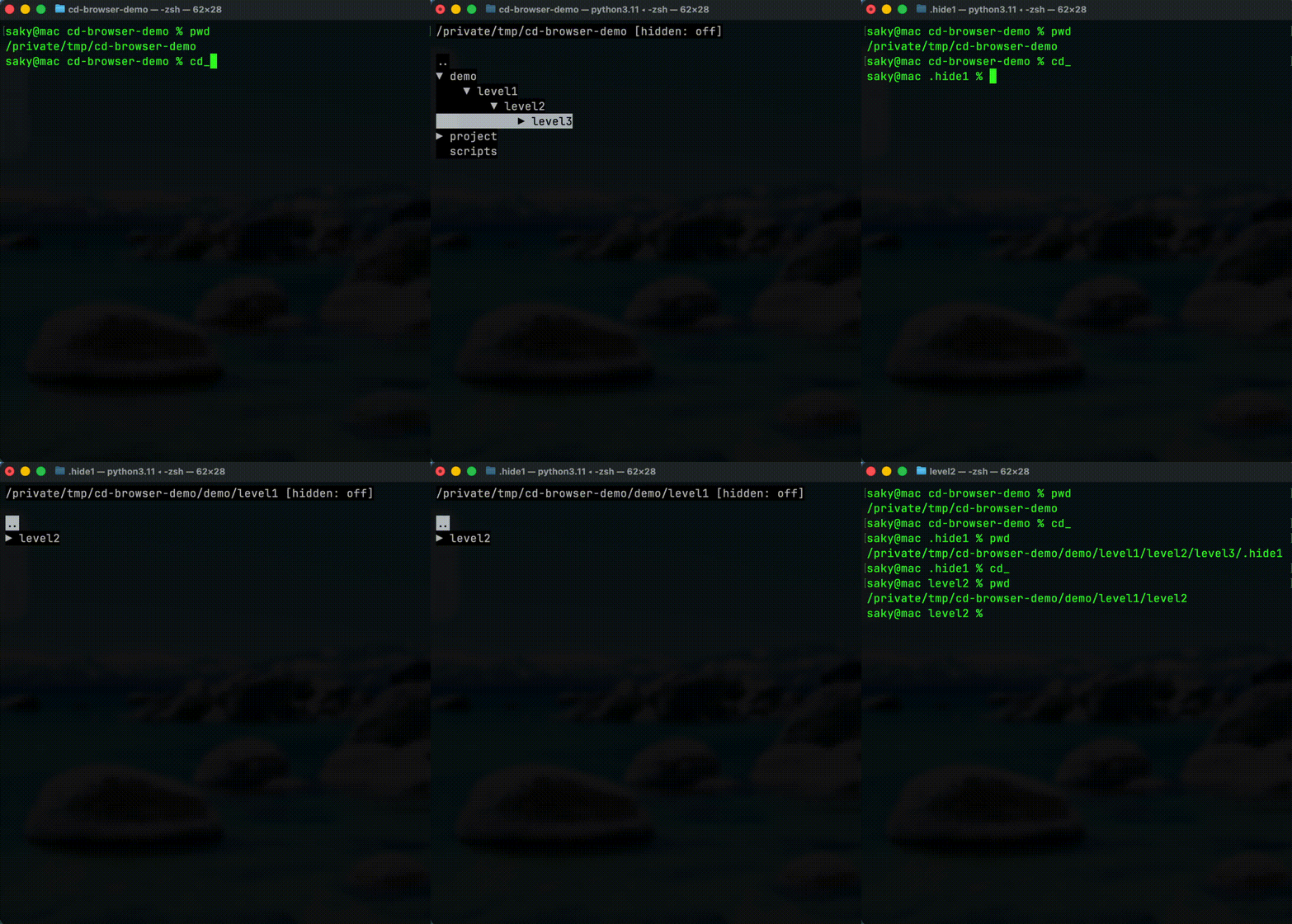
`cd-browser` provides an **interactive terminal UI** that allows you to browse directories with the keyboard and return the selected path directly to your shell.
|
|
|
|
## Features
|
|
|
|
- ⌨️ Fully keyboard-driven workflow (`↑` / `↓` / `←` / `→`)
|
|
- 🌲 Expand and collapse directories (`→` to expand/enter, `←` to collapse/back)
|
|
- 📜 Navigation history inside the session (`h` history mode, `b` back, `f` forward)
|
|
- ⚡ Returns the selected path to the shell (`Enter` to confirm, `Esc` to cancel)
|
|
- 🔎 Press `.` to toggle hidden directories
|
|
- 🖥 Native terminal interface
|
|
- 🔁 Works with Bash, Zsh and other shells
|
|
- 🚀 Fast visual navigation of directory trees
|
|
|
|
## Quick Demo
|
|
|
|
Run:
|
|
|
|
```bash
|
|
cd_
|
|
```
|
|
|
|
Browse directories using the arrow keys and press **Enter** to jump directly to the selected folder.
|
|
|
|
## Documentation
|
|
|
|
See the documentation index:
|
|
|
|
```
|
|
docs/index.md
|
|
```
|
|
|
|
## Installation
|
|
|
|
Install the project in user mode:
|
|
|
|
```bash
|
|
pip install cd-browser
|
|
```
|
|
|
|
**Important**: After installation, run this to set up the `cd_` command:
|
|
|
|
```bash
|
|
cd_browser_post_install
|
|
```
|
|
|
|
This interactive script will guide you through enabling `cd_` in your shell.
|
|
|
|
## Shell Integration For `cd_`
|
|
|
|
Because a Python subprocess cannot directly change the parent shell directory, use a shell wrapper that captures the final path printed by `cd_browser`.
|
|
|
|
Bash or Zsh example:
|
|
|
|
```bash
|
|
cd_() {
|
|
local target
|
|
target="$(cd_browser)" || return
|
|
|
|
if [ -n "$target" ] && [ -d "$target" ]; then
|
|
cd "$target"
|
|
fi
|
|
}
|
|
```
|
|
|
|
After adding the function to your shell profile, reload it:
|
|
|
|
```bash
|
|
source ~/.bashrc
|
|
```
|
|
|
|
Or:
|
|
|
|
```bash
|
|
source ~/.zshrc
|
|
```
|
|
|
|
Then use:
|
|
|
|
```bash
|
|
cd_
|
|
```
|
|
|
|
- Dentro de `cd_browser`, presiona `.` para alternar la visualización de carpetas ocultas.
|
|
|
|
## Uninstall
|
|
|
|
If the project was installed with `pip`, remove it with:
|
|
|
|
```bash
|
|
pip uninstall cd-browser
|
|
```
|
|
|
|
**Important**: After uninstalling, remove the `cd_()` function from your shell profile (~/.bashrc or ~/.zshrc) to clean up completely.
|
|
|
|
## Developer Setup
|
|
|
|
Recommended setup:
|
|
|
|
```bash
|
|
make dev
|
|
```
|
|
|
|
Run the application in development mode:
|
|
|
|
```bash
|
|
python -m app.main
|
|
```
|
|
|
|
Useful development commands:
|
|
|
|
```bash
|
|
make fix
|
|
make quality
|
|
make run
|
|
```
|
|
|
|
## Template Origin
|
|
|
|
This project was created from the Python AI Dev Template.
|
|
|
|
The original template documentation has been preserved in `README_TEMPLATE.md` so the project-specific README can focus on `cd-browser` usage and development.
|
|
|
|
For the original template setup, conventions, and generic workflow notes, see `README_TEMPLATE.md`.
|