
cd-browser
Stop typing paths. Browse them.
cd-browser is a fast keyboard-driven directory navigator for the terminal.
It lets you explore directory trees visually and jump to any folder instantly.
Repository (full demo + docs): https://gitea.sakydogalo.es/saky/cd-browser
Why cd-browser?
Working in the terminal often means:
- typing long directory paths
- navigating deep folder trees
- repeating
cd ..multiple times
cd-browser provides an interactive terminal UI that allows you to browse directories with the keyboard and return the selected path directly to your shell.
Features
- ⌨️ Fully keyboard-driven workflow (
↑/↓/←/→) - 🌲 Expand and collapse directories (
→to expand/enter,←to collapse/back) - 📜 Persistent history between sessions (
hhistory mode,bback,fforward) - 🔎 Incremental filter mode (
/, type to filter,Backspace,Esc) - 🧭 History filter mode (
/inside history) with most-recent-first ordering - 📄 Toggle file visibility (
a) to switch between directories-only and mixed view - ⚡ Fast jumps in large lists (
PgUp/PgDn,Home/End,g/Gin normal mode) - 🚀 Contextual
open withmenu (o) with app detection based on your environment - 🔁 Blocking terminal editors restore the UI state when they exit (
nvim,nano,less,bat) - 🧩 Configurable app menu via
config.tomlwith automatic template creation - 🛠 Development snapshot in header + detailed info panel (
i) - 👀 Toggle hidden entries with
. - 🖥 Native terminal interface
- 🔁 Works with Bash, Zsh and other shells
- ⚡ Returns the selected path to the shell (
Enterto confirm,Escto cancel)
Controls
Normal mode:
↑/↓: Move selection→: Expand directory, or enter when already expanded←: Collapse directory, or go to parentEnter: Confirm selected path and exitEsc: Cancel and return the original pathh: Toggle history modeb/f: Back / forward in navigation history.: Toggle hidden entriesa: Toggle file visibility/: Enter filter modeo: Open selected entry with an appi: Toggle development info panelPgUp/PgDn: Page jumpHome/End: Jump to first/last entryg/G: Jump to first/last entry
Filter mode:
- Type text: Filter visible entries in real time (case-insensitive)
↑/↓: Move inside filtered resultsEnter: Apply filter and perform contextual action:- Directory: navigate into it without exiting
cd_ - File: open app selection menu
- Directory: navigate into it without exiting
Esc: Exit filter mode and clear queryBackspace: Remove last filter character
History mode:
↑/↓: Move through history entries (most recent at top)Enter: Jump to selected history pathEscorh: Exit history modePgUp/PgDn,Home/End: Fast history navigation/: Enter history filter mode
History filter mode:
- Type text: Filter history entries in real time (case-insensitive)
↑/↓: Move inside filtered history resultsEnter: Jump to selected history pathEsc: Exit history filter mode and clear queryBackspace: Remove last filter character
Open with menu (o):
↑/↓: Move between app optionsEnter: Launch selected appEsc: Cancel
The menu only shows apps available in your system (PATH) and context:
- GUI options (when GUI is available):
code, systemopen/xdg-open - Terminal options:
antigravity,opencode,nvim,nano,less,bat(as applicable)
Opener Configuration
cd-browser reads opener settings from:
- macOS/Linux:
~/.config/cd-browser/config.toml - Windows:
%APPDATA%/cd-browser/config.toml
If the file does not exist, cd-browser creates it automatically with defaults.
Example:
[open_with]
files = ["code", "open", "antigravity", "nvim", "nano", "less", "bat"]
directories = ["code", "opencode", "antigravity", "nvim"]
You can reorder or remove entries to customize app priority.
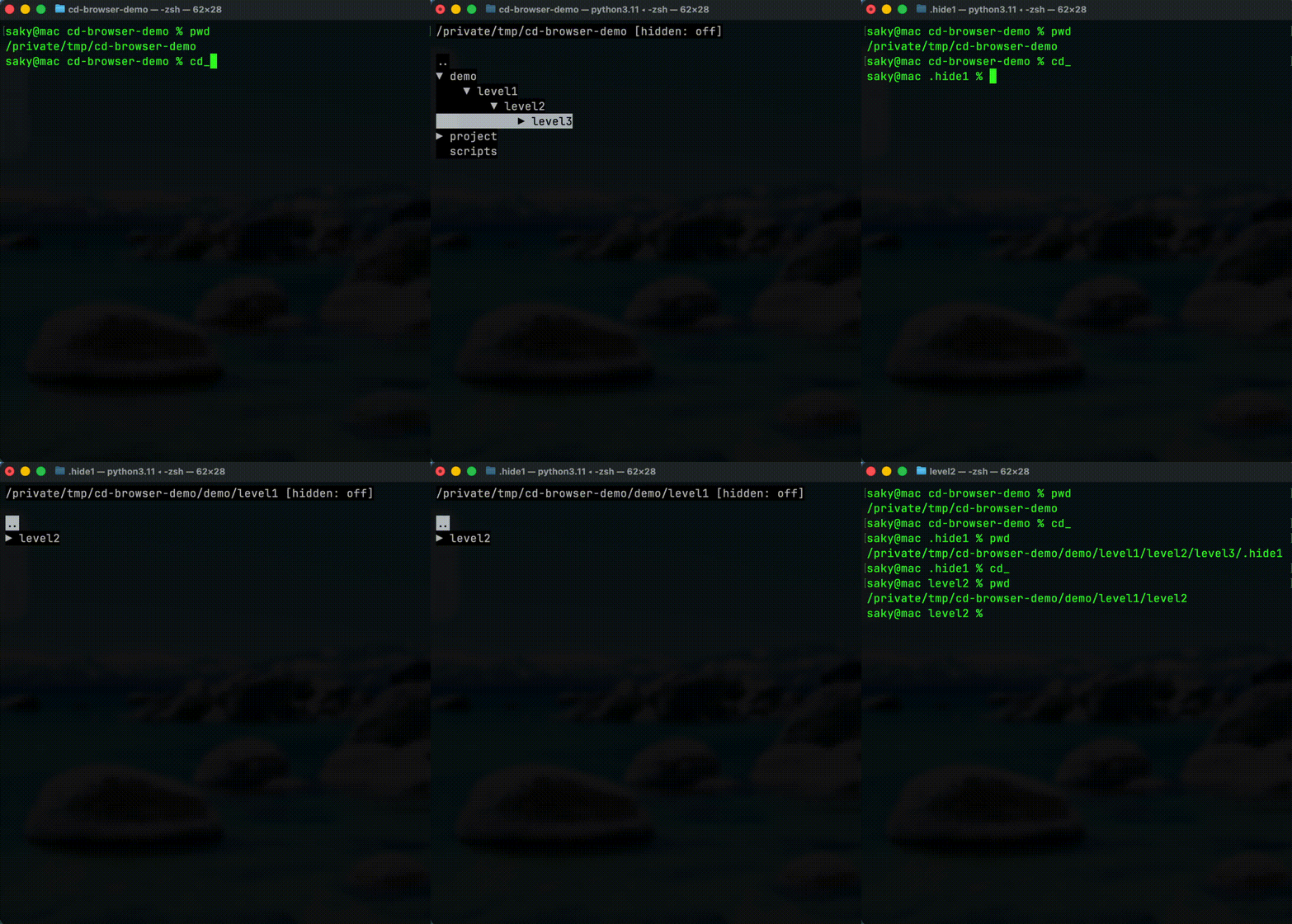
Quick Demo
Run:
cd_
Browse directories using the arrow keys and press Enter to jump directly to the selected folder.
Documentation
See the documentation index:
docs/index.md
Installation
Install the project in user mode:
pip install cd-browser
Important: After installation, run this to set up the cd_ command:
cd_browser_post_install
This interactive script will guide you through enabling cd_ in your shell.
Shell Integration For cd_
Because a Python subprocess cannot directly change the parent shell directory, use a shell wrapper that captures the final path printed by cd_browser.
Bash or Zsh example:
cd_() {
  local target
  target="$(cd_browser)" || return

  if [ -n "$target" ] && [ -d "$target" ]; then
    cd "$target"
  fi
}
After adding the function to your shell profile, reload it:
source ~/.bashrc
Or:
source ~/.zshrc
Then use:
cd_
- Inside
cd_browser, press.to toggle hidden entries.
Platform Compatibility
Practical conclusion:
- Best current support: macOS and Linux
- Windows is partially supported, but still needs real-world validation in Windows terminal environments before being considered fully supported
Uninstall
If the project was installed with pip, remove it with:
pip uninstall cd-browser
Important: After uninstalling, remove the cd_() function from your shell profile (~/.bashrc or ~/.zshrc) to clean up completely.
Developer Setup
Recommended setup:
make dev
Run the application in development mode:
python -m app.main
Useful development commands:
make fix
make quality
make run
Template Origin
This project was created from the Python AI Dev Template.
The original template documentation has been preserved in README_TEMPLATE.md so the project-specific README can focus on cd-browser usage and development.
For the original template setup, conventions, and generic workflow notes, see README_TEMPLATE.md.